
Hướng dẫn kết nối VPN từ thiết bị Android đến Draytek Vigor

Hướng dẫn kết nối​​ VPN​​ từ thiết bị Android đến Draytek​​ Vigor

Trước tiên các bạn cần có 1 account VPN đã tạo trên Draytek Vigor

Link tham khảo

https://www.draytek.com/en/faq/faq-vpn/vpn.ssl-vpn/smart-vpn-android-app-to-vigor3900-ssl/

SmartVPN Android App to Vigor3900 - SSL VPN

This document introduces how to set up Vigor3900 or Vigor2960 as a SSL VPN server and how to create SSL VPN Tunnel from Smart VPN Android app.

(This article applies to Vigor3900 and Vigor2960, for other models, please refer to the article here.)

Configuring Vigor3900 as SSL VPN Server

1. Go to VPN and Remote Access >>Remote Access Control to check if SSL Tunnel Service is enabled.

http://www.draytek.com/images/support/ApplicationNotes/Vigor3900/G52919-How_to_Setup_SSL_VPN_Tunnel/a1.jpg   

2. Go to System Maintenance >> Access Control, and select Enable for HTTPS Allow.

http://www.draytek.com/images/support/ApplicationNotes/Vigor3900/G52919-How_to_Setup_SSL_VPN_Tunnel/a2.jpg   

3. Go to User Management >>User Profile, click Add to create a new User Profile with SSL Tunnel enabled.

http://www.draytek.com/images/support/ApplicationNotes/Vigor3900/G52919-How_to_Setup_SSL_VPN_Tunnel/a3.jpg   


Using SmartVPN Android APP as SSL VPN Client

1. Download Smart VPN APP for Android from Google Play, and run the APP. https://www.draytek.com/en/assets/files/faq/2016/G59934/11-smart%20vpn%20icons.png

2. Tap the "+" button to add a new profile.
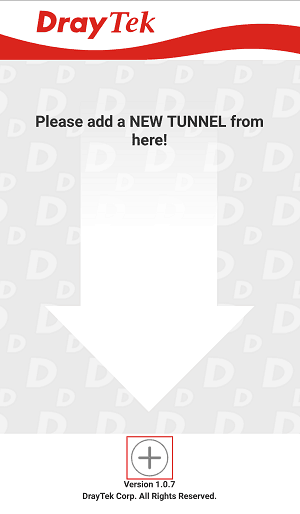
https://www.draytek.com/en/assets/files/faq/2016/G59934/12-add%20new%20tunnel.png   

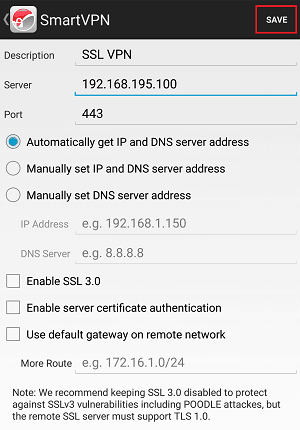
3. Edit the profile as follows:

  • Enter Description of this profile.

  • Enter Vigor3900's IP in Server.

  • Enter Port as the port which VPN server uses for SSL VPN; for Vigor Routers, it is 443 by default.

  • Tap SAVE to save the profile

https://www.draytek.com/en/assets/files/faq/2016/G59934/13-configuration.png   

Note:

  • Installation of relevant Root CA is required to enable server certificate authentication.

  • If you check "Use default gateway on remote network", all the traffic of this smart phone will be forwarded to the remote gateway.

4. Tap the profile bar to establish SSL VPN tunnel.

https://www.draytek.com/en/assets/files/faq/2016/G59934/14-click%20to%20connect.png   

5. Enter Username and Password, then tap Dial.
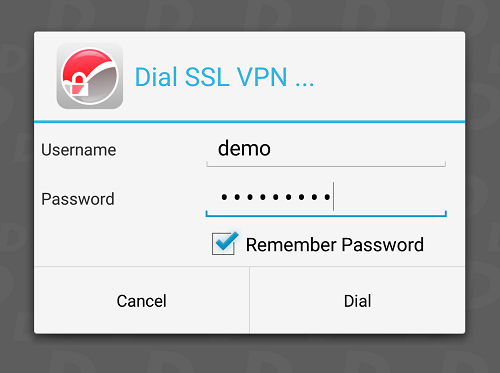
https://www.draytek.com/en/assets/files/faq/2016/G59934/15-account%20and%20password.png   

6. When the tunnel is up, the profile will turn green. Tap the bar again will disconnect the tunnel.
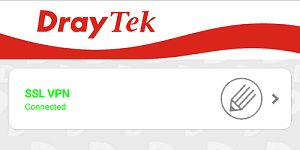
https://www.draytek.com/en/assets/files/faq/2016/G59934/16-connection%20establish.png   

7. Tap the pencil icon to edit or remove the profile.

https://www.draytek.com/en/assets/files/faq/2016/G59934/17-edit%20tunnel.png


BÀI VIẾT CÙNG CHUYÊN MỤC

Không copy được giữa máy Windows và máy ảo qua mRemoteNG/RDP: Nguyên nhân và cách sửa
Không copy được giữa máy Windows và máy ảo qua ...

mRemoteNG Remote Desktop RDP Clipboard Redirection rdpclip.exe VPS Windows ...

Hướng dẫn bật Nested Virtualization trên ESXi để chạy Android Studio Emulator trong máy ảo Windows
Hướng dẫn bật Nested Virtualization trên ESXi để chạy ...

Nested Virtualization ESXi VMware Android Studio Android Emulator WHPX Hyper-V ...

PITR (Point In Time Recovery) là gì? Khôi phục Database về đúng thời điểm cần thiết
PITR (Point In Time Recovery) là gì? Khôi phục ...

PITR, Point In Time Recovery, PITR là gì, Database Recovery, PostgreSQL PITR, ...

Backup Database Full, Incremental, Differential khác nhau thế nào?
Backup Database Full, Incremental, Differential khác ...

Backup Database, Full Backup, Incremental Backup, Differential Backup, Backup ...

Database Cluster là gì? High Availability, Failover và Cluster Database hoạt động như thế nào?
Database Cluster là gì? High Availability, Failover và ...

Database Cluster, Database Cluster là gì, High Availability Database, Database ...